HTC Vive Advanced Setup: Troubleshooting Tracking Issues
Why do I call these “advanced settings”? Because I kept running into issues where the headset tracking would frequently get lost, yet none of the troubleshooting threads on the internet could fix it. If you are facing the same frustration, this post might save your day.
1. Diagnostics Tool: Frame Timing Display
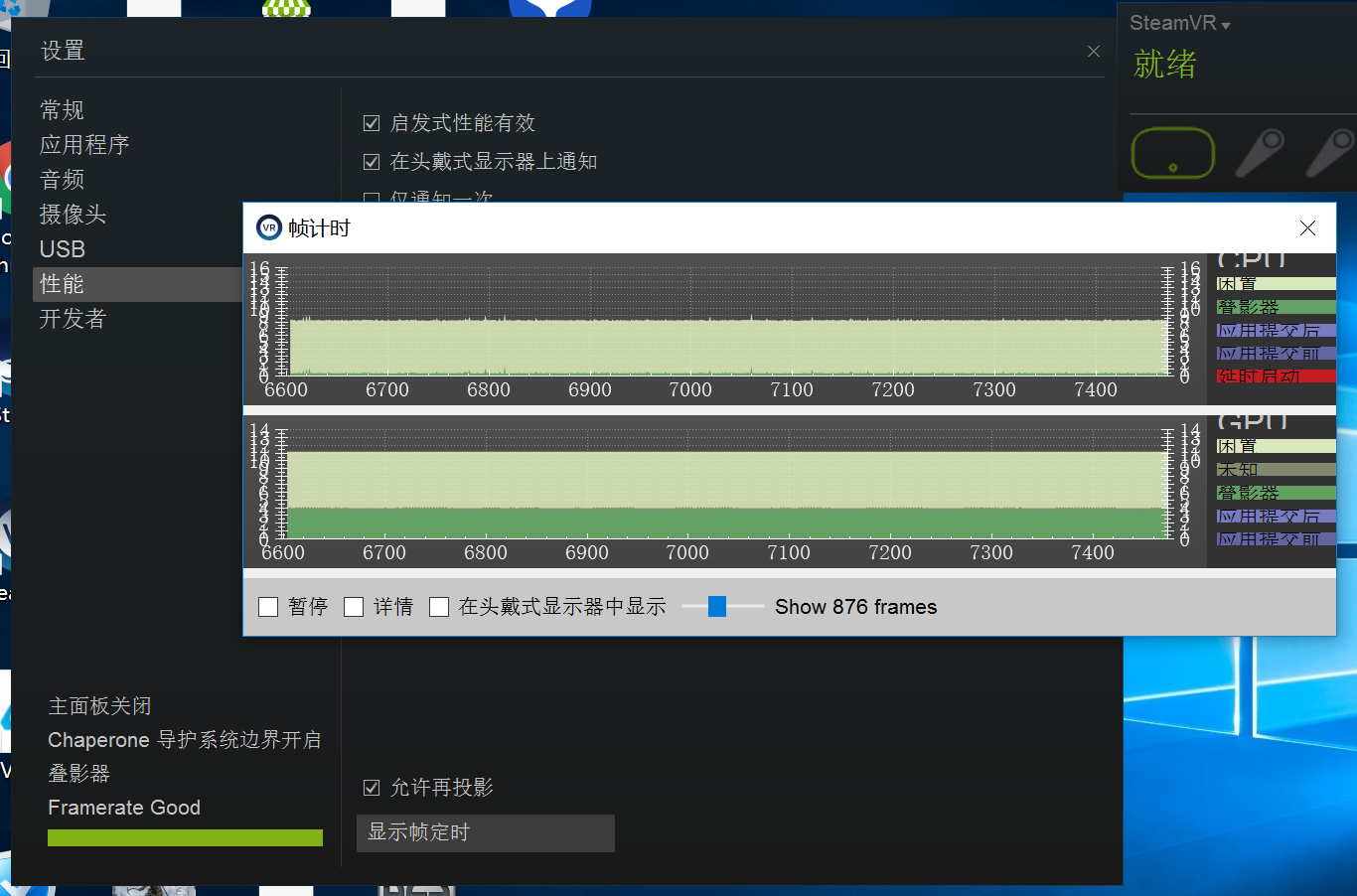
In the SteamVR menu, navigate to Settings -> Performance -> Display Frame Timing. This is the official troubleshooting tool recommended by SteamVR. It gives you a detailed visualization of the entire rendering pipeline and hardware performance.
You can use this tool first to diagnose the root cause of your issues (though in my case, it didn’t show any hardware bottlenecks). The graphs are pretty self-explanatory. Furthermore, you can even use this while in-game: simply check Show in Headset, and perform a “looking at your watch” gesture with your right controller to view real-time dynamic data.
2. Base Station Positioning & Room Overview
My base stations always had somewhat flaky tracking status, which was likely due to a sub-optimal installation angle. I tried tweaking the angles to get a better view, but I would still experience random tracking loss or sudden screen shaking whenever I turned around.
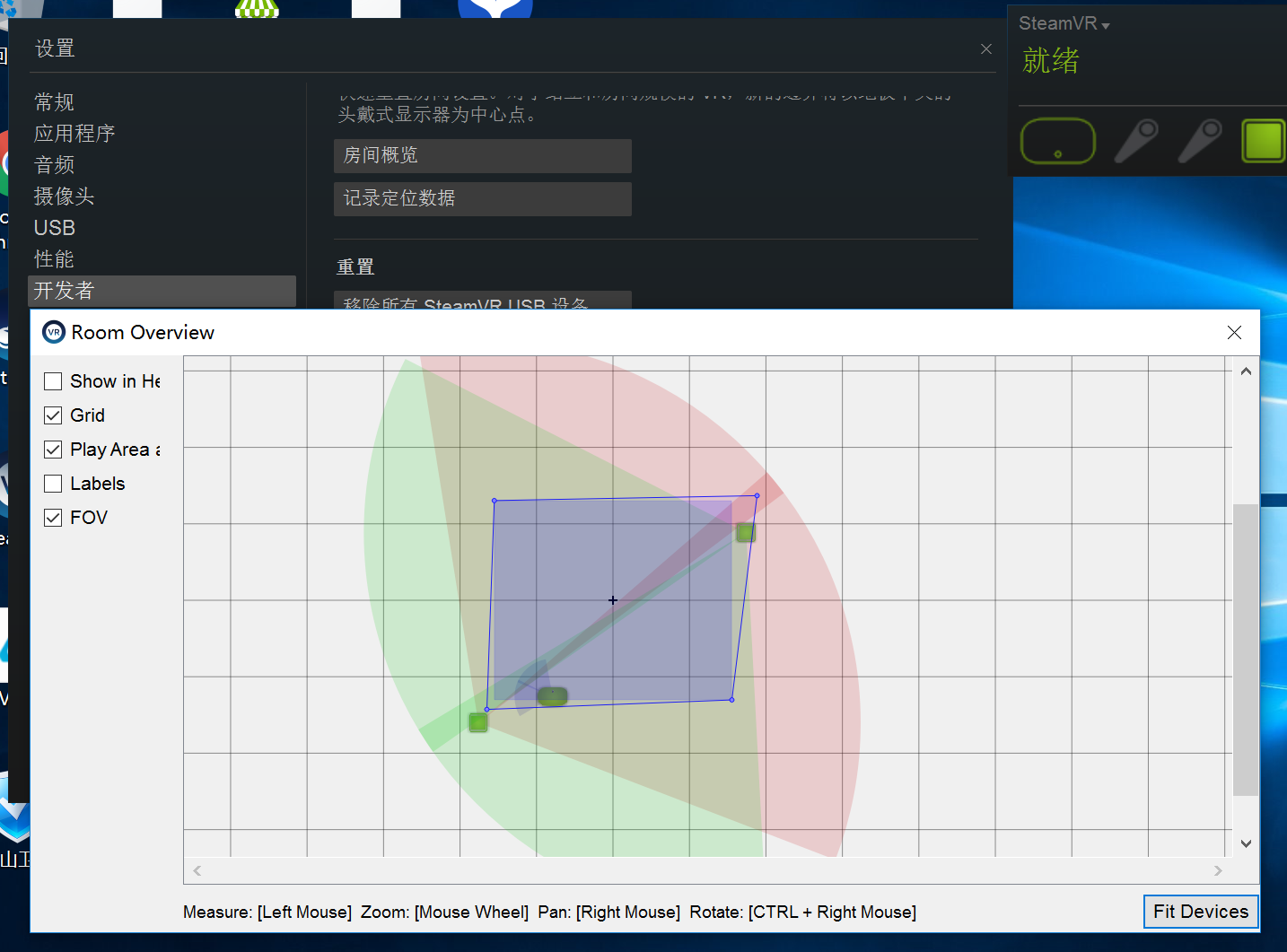
Then, I found an incredibly helpful tool under Developer -> Room Overview.
This screen visualizes exactly how your base stations, headset, and controllers are represented in 3D space, particularly showing the active coverage area of the base stations. By using this, I adjusted my base stations to maximize their overlapping coverage area. After doing so, I tested it again and the annoying screen shaking completely disappeared, and tracking loss occurrences dropped significantly.
Using this tool requires a bit of spatial awareness. You’ll need to figure out how your physical play space maps to the virtual visualization. I recommend walking to all four corners of your room to test it—you might find that the actual coverage mapping is quite different from what you’d expect!